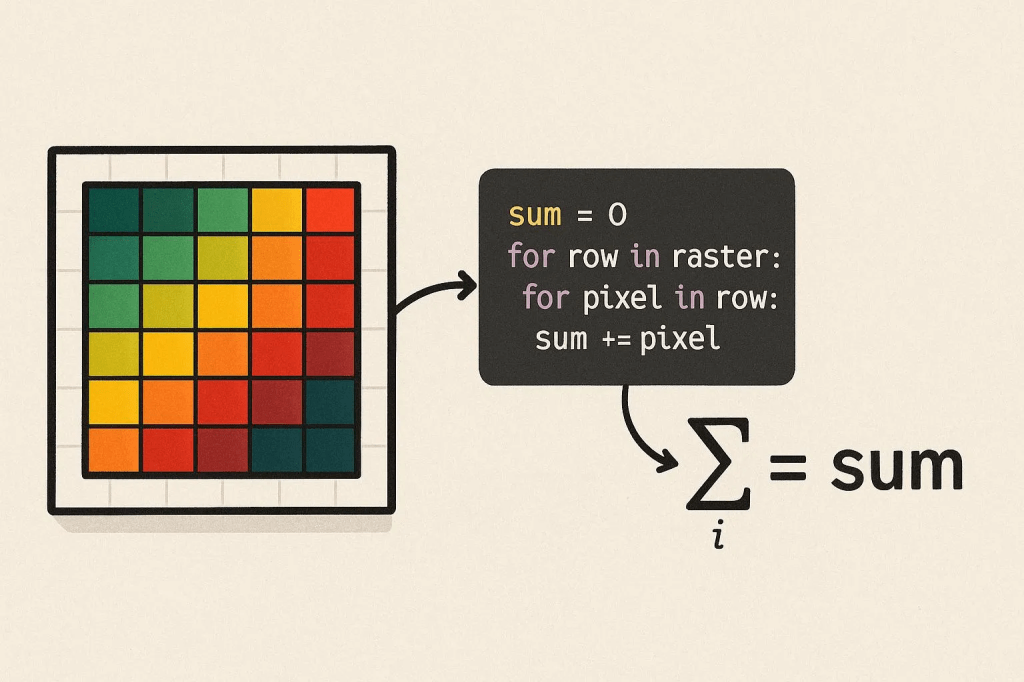
When you are working with raster data (e.g., digital terrain models), you may need to do several mathematical calculations using the pixel values, depending on your purpose. In this post, I am going to demonstrate how to sum all the pixel values in a digital surface model using Python.
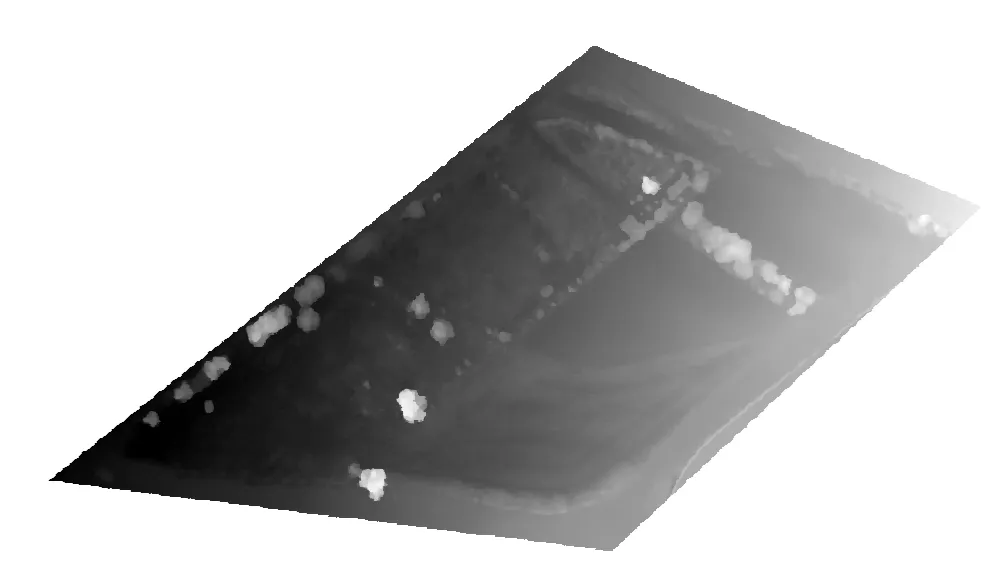
I will use a Digital Surface Model for demonstration. It has height values in meters.
import rasterio
import numpy as np
- rasterio: Used to read and process geographic data files (raster data) such as TIFF. This library is especially common in remote sensing and GIS applications.
- NumPy: Used for numerical calculations. Required to process pixel values as an array and perform mathematical operations such as addition.
Without these libraries, we cannot read a TIFF file or perform calculations on pixel values. Rasterio is usually installed in the Colab environment, but if not, it can be installed with !pip install rasterio.
Define the file path.
file_path = '/content/drive/My Drive/Data/difference.tif'
This code defines the location in Google Drive of the TIFF file to be processed. Google Colab can work integrated with Google Drive. /content/drive/My Drive/ is the root directory of Google Drive. Data/difference.tif points to the “difference.tif” file located in the “Data” folder in Drive.
We need to make sure the file is in TIFF format. Any other format (for example, PNG or JPEG) cannot be read directly with rasterio.
Let’s read the data and sum the pixel values;
# Read TIFF file and calculate sum of pixel values
with rasterio.open(file_path) as src:
# Read the first band
data = src.read(1, masked=True)
# Get the no-data value
nodata = src.nodata if src.nodata is not None else None
# Filter invalid values (NaN, inf, -inf)
if nodata is not None:
valid_data = np.ma.masked_equal(data, nodata) # Mask no-data values
else:
valid_data = np.ma.masked_invalid(data) # Mask invalid values like NaN, inf, -inf
# Calculate the sum of valid pixel values only
if valid_data.count() > 0: # If there is valid data
total_sum = valid_data.sum()
print(f"Sum of valid pixel values: {total_sum}")
print(f"Number of valid pixels: {valid_data.count()}")
else:
print("Error: Valid pixel value not found.")
- with rasterio.open(file_path) as src: Opens the TIFF file and creates a context manager to read its contents.
rasterio.open(file_path) opens the file in read mode and returns a rasterio.DatasetReader object (src).
The with statement allows file operations to be performed safely. The file is automatically closed when the operation is completed, which prevents memory leaks.
This step provides access to the contents of the file (pixel data, metadata).
- data = src.read(1, masked=True): Reads the first band (channel) of a TIFF file and masks the no-data values.
What is a band?: TIFF files can contain multiple layers of data (bands). For example, in a satellite image, red, green, and blue colors might be separate bands. src.read(1) reads the first band.
masked=True enables no-data values (if defined in the file) to be marked as a NumPy MaskedArray. This ensures that no-data pixels are ignored during calculation.
data is a NumPy MaskedArray containing pixel values. Each pixel is a numeric value (for example, of type float32 or int16) at a location in the image.
If our file contains more than one band and the wrong band is read, you may get unexpected results. To check the number of band:
print(src.count)
If masked=True is not used, no-data values (for example, -9999) are read as raw values and may affect the total.
- nodata = src.nodata if src.nodata is not None else None: Retrieves the no-data value (if any) from the TIFF file’s metadata.
What is a no-data value?: TIFF files can define a no-data value to represent invalid or missing data (for example, -9999 or 0).
src.nodata returns the no-data value defined in the file’s metadata. If not defined, None is returned.
The presence of the no-data value is checked with src.nodata is not None. Otherwise, the nodata variable is None.
Why it matters: Handling no-data values correctly prevents incorrect totals from being calculated. For example, areas covered by clouds in a satellite image might be marked as no-data.
- if nodata is not None (and else): Keeps only valid pixel values, masking no-data values or invalid values (NaN, inf, -inf).
np.ma.masked_equal(data, nodata) masks pixels in the data array that are equal to the nodata value. For example, if the no-data value is -9999, pixels with this value are excluded from the calculation.
np.ma.masked_invalid(data) masks invalid values such as NaN (non-numeric), inf (infinity), and -inf (negative infinity). This prevents errors (for example, overflows or undefined values) that are particularly common with float data types.
What is MaskedArray?: NumPy’s MaskedArray class allows certain values to be excluded from calculations. Masked pixels are ignored in operations such as summing or averaging.
- if valid_data.count() > 0: Checks the number of unmasked (valid) pixels.
valid_data.count() returns the number of unmasked (valid) pixels in the MaskedArray. If there is at least one valid pixel, the addition is performed. Otherwise, an error message is printed. This is important because if all pixels are masked (for example, all no-data or NaN), the summation operation becomes meaningless. This check prevents working with an empty data set.
- total_sum = valid_data.sum(): Calculates the sum of the current pixel values.
Let’s run the code.

We need to interpret the sum of valid pixel values and number of pixels by considering the unit (of the pixel values) and spatial resolution. My height values are in meters and my spatial resolution is 2.7 cm. This makes it understand for me to understand what do these result values mean.
Let’s say that we want to eliminate specific pixel when we do an addition operation. For example, let’s assume that we need to exclude the pixels with the value of something between 0 and -1 or 0 and +1. Then the code should be like this;
# Import required libraries
import rasterio
import numpy as np
# Specify the path to the TIFF file
file_path = '/content/drive/My Drive/Data/difference.tif'
# Read TIFF file and filter pixel values
with rasterio.open(file_path) as src:
# Read the first band, mask the no-data values
data = src.read(1, masked=True)
# Get the no-data value
nodata = src.nodata if src.nodata is not None else None
# Mask invalid values (NaN, inf, -inf)
if nodata is not None:
valid_data = np.ma.masked_equal(data, nodata)
else:
valid_data = np.ma.masked_invalid(data)
# Eliminate values in the range [0, +1] and [0, -1]
filtered_data = np.ma.masked_where(
((valid_data > -1) & (valid_data < 0)) | ((valid_data > 0) & (valid_data < 1)),
valid_data
)
# Calculate the sum of the remaining valid pixel values
if filtered_data.count() > 0:
total_sum = filtered_data.sum()
print(f"The sum of the remaining pixel values is: {total_sum}")
print(f"Number of valid pixels remaining: {filtered_data.count()}")
else:
print("Error: No valid filtered pixel value found.")
This is very similar to the previous code. The only difference is the code section that starts with # Eliminate values in the range [0, +1] and [0, -1]. This eliminates pixel values in the range [0, +1] and [0, -1].
valid_data > -1) & (valid_data < 0) selects values in the range -1 < x < 0
(valid_data > 0) & (valid_data < 1) selects values in the range 0 < x < 1
|: The logical OR operator combines these two ranges.
np.ma.masked_where(condition, valid_data) masks pixels that meet the specified condition. That is, pixels where -1 < x < 0 or 0 < x < 1 are excluded from the calculation.

 GIS Learn
Leave a comment