In some cases, we may need to transfer the pixel values of our raster data to corresponding points and use them as attribute information. In this blog post, I will explain how to do it in GIS environment. There are two cases. First; we may create points corresponding to each raster pixel. Second; we may already have point data for specific locations. We will touch on both cases.
This content is taken from my Udemy course, “Raster Data Processing and Analysis in ArcGIS Pro”. You can access the course via the link.
Points Corresponding to Each Raster Pixel
First, let’s create points that correspond to each raster pixel. For this, we use the Raster to Point tool.

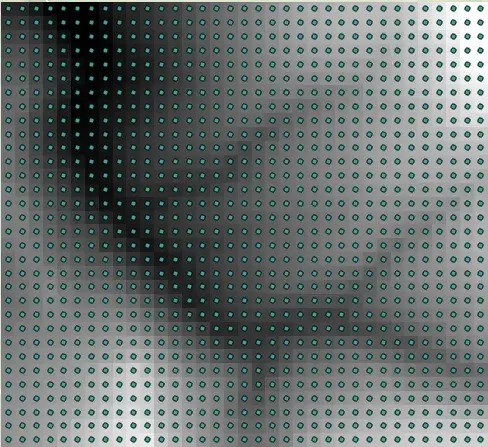
The points corresponding to each pixel are generated and the height values are stored in a separate column in the attribute table.

We Have Point Data
In the other option, we already have point data or we will create random points and transfer the height values corresponding to them. For this, we need to use the Extract Values to Points tool. However, we do not have point data, so let’s create random points with the Create Random Points tool.

After entering the name of the point layer, it asks us to select a vector data in the Constraining Feature Class section. The area where the points will be created will be limited using this selected vector data.
The number of points to be created is up to us.
Finally, we can choose the minimum distance we allow between two points to be created. In other words, if we choose 10 meters here, the distance between two points created cannot be less than 10 meters.

But in the attribute table of this point layer, there is no height information. To get the height values, we will use “Extract Values to Points” tool.

We can find the corresponding height values in the attribute table of the newly generated point data.

 GIS Learn
Leave a comment